Sakura Editor practical guide
Sakura Editor plugins: install, configure, and disable them
Sakura Editor plugins add features to the desktop editor after installation. Check the plugin source and supported version first, unpack the plugin folder beside sakura.ini, then register it in Common Settings. A new editor window is usually needed before the change is visible. This guide explains the folder layout, activation, removal, troubleshooting, and the boundary between plugins and macros.
Updated: 2026-10-14
The short answer: place, register, then test in a new window
A ZIP in the plugins folder is only the file-placement step. Find the settings folder that contains sakura.ini, unpack the plugin directory at the expected depth, and open Common Settings > Plugins. Enable plugins and add or register the new folder. Then close the old document window and open a new one before deciding that the plugin failed to load.
| Goal | Where to check | Practical test |
|---|---|---|
| Check compatibility | README, release notes, supported version | Match Sakura Editor, Windows, and plugin requirements |
| Place the files | plugins beside sakura.ini | The plugin folder contains its definition file |
| Register and enable | Common Settings > Plugins | The plugin appears in the registration list |
| Confirm the result | A newly opened editor window | Test the menu, toolbar, outline, or other documented feature |
On this page
What are Sakura Editor plugins, and how are they different from macros?Four checks to complete before installing a pluginHow to install a Sakura Editor pluginManage, disable, and remove plugins in Common SettingsTroubleshoot a plugin that is missing or not workingA safe workflow for updates, sharing, and backupsScope and limitations: use the official help as the final referenceWhat are Sakura Editor plugins, and how are they different from macros?
A Sakura Editor plugin is an add-on loaded by the editor. The official help describes plugins that add commands to menus, smart indentation, outline analysis, or commands that run at startup. The exact feature set is plugin-specific. Read the supplied README and definition files instead of assuming that every plugin provides the same menu or automation model.
A macro is usually a script for repeating editing operations or calling an external process. A plugin is managed through the editor's plugin settings and can integrate with editor features. Use a macro when the job is a short repeatable transformation; consider a plugin when the documented extension belongs in the editor menu, support features, or outline workflow. Installing a plugin does not make every macro unnecessary.
| Comparison | Plugin | Macro or external command |
|---|---|---|
| Files | A folder under the settings plugins directory | A macro script or executable |
| Registration | Common Settings > Plugins | Macro list, key assignment, or command settings |
| Best fit | Editor commands and integrated support | Repeatable edits and external workflows |
| Rollback | Disable, unregister, or move the folder | Unregister the macro or restore the file |
Four checks to complete before installing a plugin
Record the Sakura Editor version and compare it with the plugin's supported versions. The official general plugin help assumes Sakura Editor 2.0.0.0 or later, but an individual plugin can have its own requirements. When a ZIP comes from an old article, verify the publisher, README, release date, required DLLs, and runtime dependencies. Do not add an executable when the source cannot be verified.
Locate the settings folder before you unpack anything. The folder containing sakura.ini can differ between an installed copy, a portable copy, and a user-specific configuration. Make a separate backup of sakura.ini, the existing plugins folder, macros, and related DLLs. A backup makes it possible to compare the configuration after a test and remove only the new files.
- Record the versionWrite down the Sakura Editor release, Windows environment, and the plugin requirements from its README.
- Find the settings folderOpen the folder that actually contains sakura.ini; do not guess from an old shortcut or a different portable copy.
- Create a backupCopy sakura.ini, existing plugins, related macros, and DLLs to a separate test or backup folder.
- Plan the rollbackDecide how to unregister the plugin, move its folder aside, and restore the backup if the editor becomes unstable.
How to install a Sakura Editor plugin
The official help uses a simple layout: create a plugins folder at the same level as sakura.ini, then unpack a folder named for the plugin inside it. A common mistake is a double extraction such as plugins\plugin-name\plugin-name\plugin.def. If the definition file is one directory too deep, the registration dialog may not find the plugin. Inspect the extracted folder in File Explorer before opening the settings dialog.
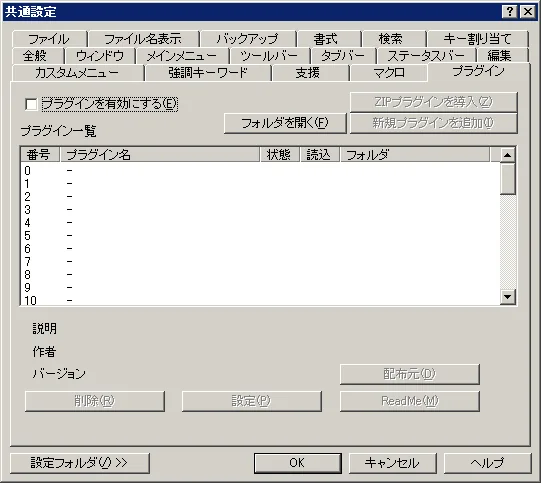
File placement does not automatically change an editor window that is already open. In Common Settings > Plugins, turn on plugin loading and use Add new plugin or the ZIP installation command described by the official help. When the list shows the plugin name, state, load status, and folder, compare its author and version with the README. Close the settings dialog, open a new window, and test a small file.
- Unpack the ZIPFollow the publisher's instructions and place the plugin directory under the correct plugins folder.
- Check the definitionConfirm that plugin.def or the file named by the README is directly inside the plugin directory.
- Open Common SettingsOpen Settings > Common Settings and select the Plugins tab.
- Add the pluginUse Add new plugin or the ZIP plugin command when the folder is not listed automatically.
- Test a new windowOpen a new editor window and test the documented menu, toolbar, outline, or support feature.
# Example layout
sakura.ini
plugins\
  plugin-name\
    plugin.def
README.txtPut the definition-file folder under plugins beside the active sakura.ini.
Enable plugins and add the folder from the Common Settings plugin tab.
Open a new window and check the feature described by the plugin README.
Manage, disable, and remove plugins in Common Settings
The Common Settings > Plugins panel has different jobs: enable plugin loading, open the settings folder, install a ZIP, add a new plugin, and inspect the registration list. The list can show states such as added, updated, stopped, running, or deleted. Use the state and load columns together; a folder can exist on disk while the current editor window has not loaded it.
To test a plugin temporarily, disable it or unregister it before moving files. The official help notes that deleting a registration does not necessarily delete the plugin files, and an already open window can keep the plugin loaded. Close the old window, open a new one, and confirm that the problem is gone. Only then move the plugin directory to a backup location for a full removal.
| Action or state | What it means | Check after changing it |
|---|---|---|
| Disable plugin loading | Do not load registered plugins | Open a new window and retest the editor |
| Stop or delete registration | Disable or unregister the selected plugin | Close existing windows before judging the result |
| Move the folder | Prevent the files from being discovered | Keep the README and backup copy |
| Open settings | Use a plugin-specific configuration screen | Record the old values before editing |
Troubleshoot a plugin that is missing or not working
When a plugin is not listed, start with the active sakura.ini location. Then inspect the folder depth, definition filename, double extraction, Windows file blocking, and supported Sakura Editor release. The most useful shortcut is the editor's Settings Folder command because it opens the location used by that copy. This avoids installing a plugin into a different portable profile by mistake.
When the plugin is listed but does nothing, read the README for dependencies, startup conditions, menu location, and restart requirements. Reproduce the issue in a new window, compare it with plugin loading disabled, and note the status shown in the registration list. Keep the exact error text, plugin version, and source URL when contacting the author.
| Symptom | First place to look | Next action |
|---|---|---|
| Not listed | sakura.ini, folder depth, plugin.def | Open the active settings folder and unpack again |
| Listed but stopped | Supported version, dependencies, state column | Read the README and reload a new window |
| Menu is missing | README feature list and toolbar settings | Check whether it is a command, support feature, or outline integration |
| Still works after removal | An existing editor window | Close it and verify in a new window |
| Editor becomes unstable | The last plugin folder added | Disable and move it aside before changing other settings |
Check the active sakura.ini location and the plugins folder depth.
Check loading, the registration list, and the definition file.
Close the old window and retry in a new editor window.
A safe workflow for updates, sharing, and backups
Treat a plugin update as a configuration change, not as a routine file copy. Record the publisher, source URL, check date, current version, new version, and change notes. Extract a new version into a separate test folder when possible; keep the old directory until the menu, outline, and normal editing workflow have passed. Overwriting the only working copy makes rollback unnecessarily difficult.
When several people share a setup, store the ZIP together with its README, source URL, supported Sakura Editor release, required settings, and disable procedure. Use the settings export and diff guides to separate plugin files from personal preferences. If Windows security or an organization policy blocks the file, stop the installation and ask the administrator instead of bypassing the warning.
- Record itKeep the source, check date, plugin version, and compatible Sakura Editor release.
- Test separatelyUse a copied settings folder instead of overwriting the only working profile.
- Review the diffCompare sakura.ini and the plugins directory so unexpected menu or setting changes are visible.
- Share a rollbackDocument disable, unregister, folder-move, and restore steps with the package.
Scope and limitations: use the official help as the final reference
A plugin's features, supported operating systems, configuration controls, and license are controlled by its author and release. This page summarizes the general folder and management model in the official Sakura Editor help; it does not certify a third-party plugin or promise future compatibility. When a label differs on your screen, prefer the help and README for the installed release.
If a problem remains, test the editor with the plugin disabled, reproduce it in a new window, and verify the same settings folder. Do not add random DLLs or executables while the cause is unknown. Return to the official help, the publisher's change log, or your organization's administrator before making a wider change.
Frequently asked questions
Frequently asked questions
Where do I install Sakura Editor plugins?
The official help places a plugins folder beside the sakura.ini used by that Sakura Editor profile, with one plugin folder inside it. Use the Settings Folder command to confirm the active location before unpacking.
Can I use a plugin by placing its ZIP in the plugins folder?
Not always. Unpack the expected folder, confirm its definition file, enable plugin loading, register it in Common Settings > Plugins, and test it in a newly opened editor window.
Why is my Sakura Editor plugin not listed?
Check the active sakura.ini path, folder depth, plugin.def or other definition file, double extraction, Windows blocking, and the plugin's supported Sakura Editor release. A second portable copy is a common source of confusion.
How do I disable a Sakura Editor plugin?
Turn off plugin loading or stop and unregister the plugin in Common Settings > Plugins. Registration removal may leave files on disk, and an existing window may keep the plugin loaded, so verify from a new window before moving the folder.
Why did a plugin change not appear?
The official help says plugin setting changes apply from the next new editor window and do not retroactively change windows that are already open. Close the old window and test again with the README's documented feature.
Should I use a plugin or a macro?
Use a macro for repeatable editing or external commands. A plugin is a better candidate when the feature integrates with editor menus, support functions, or outline analysis. Always check the individual plugin README and version requirements.